// intune device page → screenconnect session
One click from Intune to a ScreenConnect session.
Your device inventory lives in the Microsoft Intune admin center; your remote control lives in ConnectWise ScreenConnect. This extension turns Intune's Begin a remote assistance session action into a launcher for the device you're already looking at.
// features
Built for the admins who live in both consoles.
No new console, no new habit. The extension hooks the action you already reach for and points it at your own ScreenConnect instance.
Launches from the action you already use
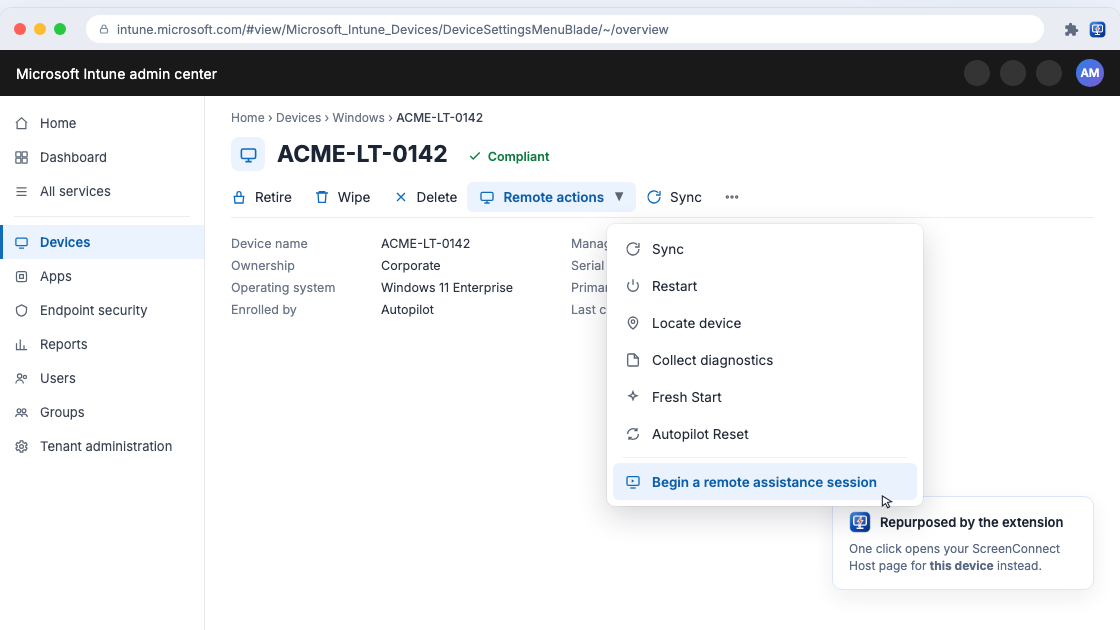
On any Intune device page, Begin a remote assistance session under Remote actions opens ScreenConnect for that exact device.
Search mode
Opens your Host page pre-filtered to the device name, so the machine you want is the only row on screen.
Direct mode
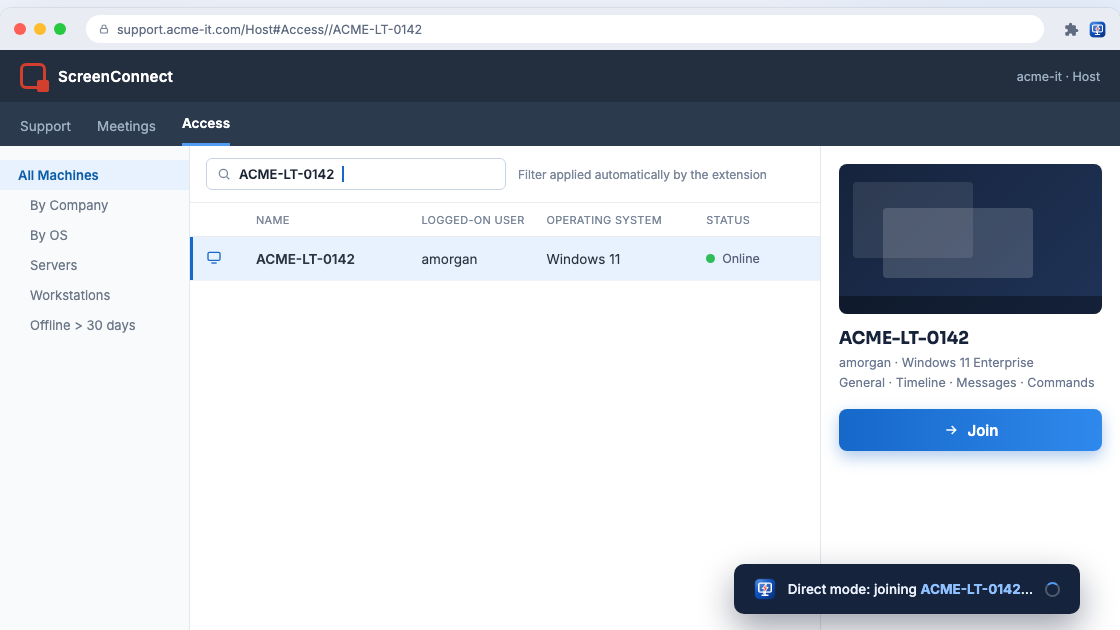
Goes one step further and joins the matching access session automatically — inventory to remote control in a single click.
Works without Remote Help
The menu item is re-enabled and restyled to match the portal theme, so it works even when Microsoft's own remote assistance isn't set up in your tenant.
Cloud or self-hosted
Point it at a hosted *.screenconnect.com instance or a self-hosted server on your own domain. Both work the same way.
Private by design
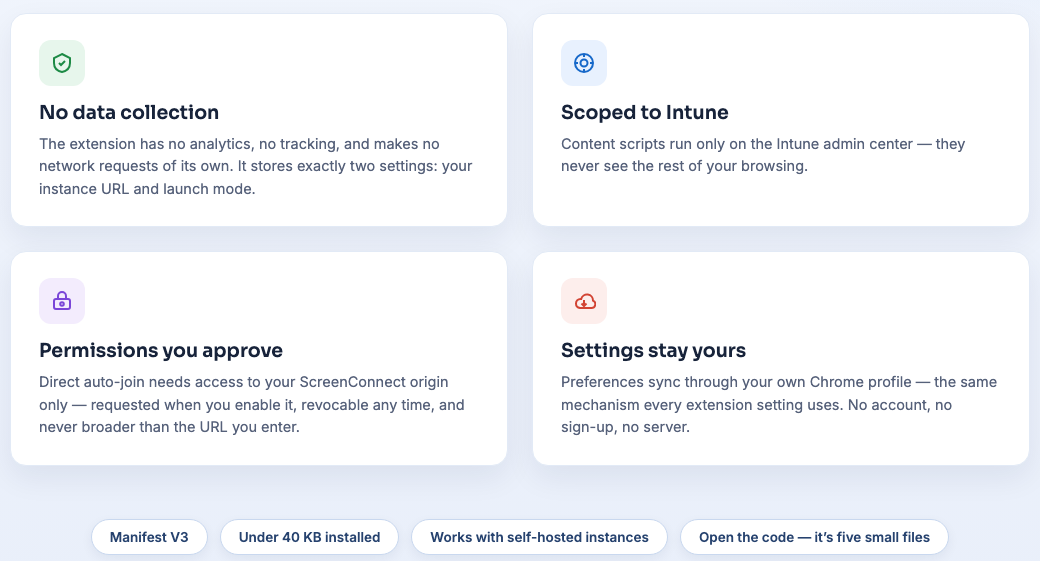
No analytics, no tracking, no external services. The extension makes no network requests of its own — it only opens your ScreenConnect tab.
// how it works
The same five steps, every single session.
Copy the device name, open the Host page, paste, search, join. The extension collapses that ritual into the click you were already making.
before
- Copy the device name out of Intune
- Switch tabs to your ScreenConnect Host page
- Paste the name into the filter box
- Pick the machine out of the list
- Click Join
after
↓
Two ways to land
Pick the one that matches how much you trust the name match. You can change it any time from the toolbar popup.
Open the Host page, pre-filtered
Lands you on your Access list with the device name already applied as a filter. You confirm the machine and click Join yourself.
support.example.com/Host#Access//ACME-LT-0142
Join the session outright
Finds the matching access session and joins it for you. Needs one optional permission, scoped to exactly the instance URL you entered — and falls back to search mode until you grant it.
→ joining ACME-LT-0142…
Thirty-second setup
Two settings, stored in your own Chrome profile. There's no account to create and no server to stand up.
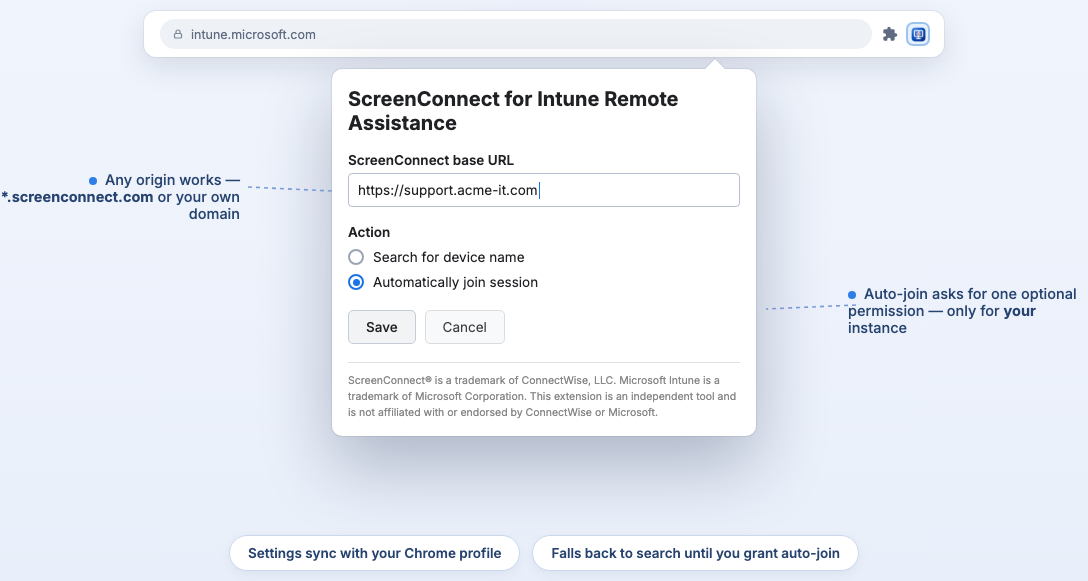
Click the extension icon
The popup opens straight into the two settings it needs.
Enter your ScreenConnect base URL
Hosted at yourcompany.screenconnect.com, or self-hosted on your own domain — either is fine.
Pick what a click should do
Search for the device name, or automatically join the session. Save, and the Intune menu item is live.
// screens
See it in action.
Tap any screen to view it full size.
// support
Help & FAQ.
Quick answers to the most common questions — and a direct line to the developer.
Which browsers does it support? ›
Any Chromium-based browser — Google Chrome and Microsoft Edge. Install it from the Chrome Web Store.
Do I need Microsoft's remote assistance set up first? ›
No. The extension re-enables and restyles the Begin a remote assistance session menu item so it works even when Remote Help isn't configured in your tenant. If Microsoft's own remote assistance is set up, the extension takes over that menu item and sends you to ScreenConnect instead.
Does it work with a self-hosted ScreenConnect server? ›
Yes. Enter any base URL — a hosted *.screenconnect.com instance or a self-hosted/on-premises server on your own domain. Both behave identically.
It didn't find my device — why? ›
Device names have to match between Intune and ScreenConnect for search and auto-join to locate the machine. If the two systems name the same device differently, the filter has nothing to match on. Search mode still gets you to the Host page, where you can find it by hand.
What is the optional permission for? ›
Only direct mode needs it, and it's scoped to exactly the ScreenConnect URL you entered — nothing broader. It's what lets the extension find and join the matching access session for you. Until you grant it, direct mode falls back to search mode, and you can revoke it at any time.
Does it collect any data? ›
No. There are no analytics, no tracking, and no external services — the extension makes no network requests of its own; it only opens your ScreenConnect tab. It stores exactly two settings (your instance URL and launch mode), synced through your own Chrome profile, and its content scripts run only on the Intune admin center. See the Privacy Policy for details.
Is this affiliated with ConnectWise or Microsoft? ›
No. ScreenConnect for Intune is an independent tool built by Liacos Labs, and is not affiliated with, sponsored by, or endorsed by ConnectWise or Microsoft.
How do I report a bug or request a feature? ›
Email help@liacoslabs.com, or use the button opposite. Including your browser version, the extension version, and whether you're on hosted or self-hosted ScreenConnect gets it sorted fastest.